Frequently asked questions and their answers

Daily use of SecuMail® (for users)
Quarantine | Notifications | ForwardingThis is a list of emails filtered the previous day that were intended for your mailbox. We call this email the “daily summary.”
The list is cleverly sorted by relevance, so you only need to check the top emails. These are listed under “Please check” Emails that SecuMail® has classified as spam with sufficient certainty can be found under “don’t need to check” The further down an email is listed, the more confident SecuMail® was when filtering it.
As a user, you can also check filtered spam emails yourself and have them forwarded to you. For this purpose, the daily summary contains a “Check email” button for each listed spam email. This takes you (without further registration) to the SecuMail® website. There you can preview your email and, after checking it, forward it if necessary and automatically exempt the sender of the email from the spam filter (whitelist).
Please note that this whitelist only applies to the spam filter. This exemption has no effect on security-related filters. Emails that have been filtered for security reasons cannot be resent via the daily summary. Please contact your administrator for assistance.
Please read our blog article “Redesign: What the new daily summary can do” and see the advantages of the new daily summary.
Do you suspect that an important email has been filtered by SecuMail® and cannot wait until the next daily summary to be sure or to resend the email?
In this case, you can use the “Request real-time summary” button to have a preliminary daily summary for the current date sent to you from a previous daily summary.
In all other cases, your IT department will be happy to help you. Your administrator can use the SecuMail® web search function to find your missing email and forward it to you immediately if necessary.
The instant notification is an email sent by SecuMail® to SecuMail® customer users. It is generally sent when a potentially dangerous file is found in an attachment to an email that is being scanned. If the attachments show signs of possible attack vectors, e.g., macro code, they are filtered by SecuMail® as a precautionary measure, even if no malware has been detected directly by the virus scanners. Files such as .vbe, .bat, or .docm are often filtered as a precaution. Since the email may still be important to the recipient, they are notified of the filtering and can have their administrator resend the email as quickly as possible. No immediate notification is sent in the following cases:
- This is a file type that currently or generally contains viruses.
- The recipient has already received five instant notifications from the same filter type on the same day.
Manual scanning is not necessary. When an email is forwarded, it is checked again by the virus scanners and, if necessary, the forwarding process is aborted if the current signatures strike during the second run. SecuMail® generally has all emails checked by two virus scanner engines. If a virus scanner detects a virus, the corresponding output is displayed for the administrator in both the daily summaries and in SecuMail® Web. All emails that have been filtered by a virus scanner due to a virus detection cannot generally be forwarded. Emails that have been filtered due to a prohibited attachment, such as a .vbe, but none of our virus scanners have found a virus, either do not contain a virus or do not contain one that could be detected by virus scanners at time X. In both cases, it is hardly necessary to use another virus scanner. With current ransomware, the probability that a virus scanner will detect its macro in the email is alarmingly low. In unclear cases, we recommend asking the sender (if known) whether they sent the email. For unknown senders, we recommend using the trash can.
You receive multiple daily summaries because you have multiple email addresses. You can prevent this by sending an email to support@secumail.de, providing us with the relevant email addresses and the email address to which the “bundled” daily summary should be sent.
Would you like to have the daily summaries for existing standard addresses (such as info, contact, support) sent to only one person who is responsible for processing them?
Please send us an email specifying which addresses are to be combined and to which other address they are to be redirected. Each email address can be redirected once or added to another address. The contents are always merged at the end so that each address receives only one report.
SecuMail® Web is the web portal for administrators and users. It provides various options for accessing emails processed by SecuMail®, in particular emails that have been quarantined because they have been filtered. The available functions include:
- Email search
- Email Preview
- Information about the filter status of an email
- Forwarding
- Statistical information
- Maintaining the valid address filter list
Every SecuMail® customer receives access to the portal. This is intended for the IT administrator(s) and should not be shared with users for security reasons. https://web.secumail.de
If you have any questions about using SecuMail® Web, the SecuMail® team will be happy to take your call.
A daily summary is sent to every email address for which at least one email was filtered the previous day. If nothing was filtered, no daily summary is sent. If the daily summary contains only virus notifications, it will also not be sent.

No, that is not necessary. The filtered emails are sorted according to spam probability. First, the emails that SecuMail® was not entirely sure were spam are listed under “Please check” – the clear spam emails can be found under “don’t need to check”.
This means that only the top emails are relevant when searching for incorrectly filtered emails (false positives). As a rule, you do not need to visually check any other emails.
You can easily view and forward a spam email using the “Check email” button.

That is not the case. SecuMail® has no influence on the activities of spam senders.
However, if you feel that you are seeing a larger number of filtered spam emails in the daily summaries than with the old spam filter, there could be two reasons for this:
- SecuMail® finds and filters more emails than the old filter.
- The old filter only listed some of the filtered spam emails. Unlike other (cheaper) filters, SecuMail® initially accepts almost all emails and then takes the time to inspect them thoroughly (takes approx. 5 seconds). This means that all filtered emails are listed in the daily summary. Other filters often reject emails immediately based on initial signs during transmission. These (possibly prematurely) rejected emails then no longer appear in the listing.
Das Nachsenden von E-Mails mit potentiell gefährlichen, sowie auf Windows ausführbaren Anhängen ist aus Gründen der Sicherheit dem Administrator vorbehalten. Dieser hat ein geschultes Auge und das nötige Wissen, um zu entscheiden, ob eine Datei nachgesendet werden kann. Viele Trojaner nutzen bei Ihren Angriffen beispielsweise gefälschte und Ihnen bekannte Absenderadressen von Geschäftspartnern oder Kunden, um Vertrauen zu erschleichen.
If you discover an email in your daily summary or instant notification that you still need, send the SecuMail® email ID provided (example: 1508250600293619_22412_sc03.secumail.de) to your administrator with a request to check and forward it. As a user, you can resend all emails that have been filtered as spam yourself via the daily summary.
Yes! We are very grateful for our customers’ cooperation. If you discover a spam email that seems to slip through frequently, please inform your email administrator. They will forward the email to us for review. We will then ensure that this spam email is filtered in the future.
Read here how the administrator can forward the email to SecuMail®.
SecuMail® sends a notification email to the recipient for every email that is filtered due to unauthorized attachments, mail size, or damaged archive files. This instant notification does not apply to filtered virus emails and spam. All filtered emails from the previous day are listed in the daily summary, which is sent to users every morning.
The mail archives of filtered emails are stored for 28 days.
This instant notification email itself is not spam, of course. There are two reasons why you received this email:
- Executable files are filtered across the board because they could contain viruses (see FAQ Why are executable files filtered across the board?).
- You will always receive immediate notification of filtered (retained) executable files, as these may also contain desired code—and you want to know this immediately so that you can have them sent to you if necessary.
Business Filter customers can also have this instant notification disabled. No more than five instant notifications per user and filter reason will be sent in a single day.
SecuMail® includes several filters that check attachments for specific file types and block potentially dangerous types. These include the following:
- The extension filter only examines the file extension and ensures that files with extensions such as .pif, .reg, .exe, .vbs, .bat, .js, etc. are blocked.
- The Exe filter is a little smarter and looks inside the files so that (especially on Windows) executable files are recognized and blocked as such, regardless of their file name or extension.
- The intelligent macro filter is even smarter and finds macros embedded in file attachments, among other things. Ransomware often hides in old MS Office files such as .doc or .xls.
Like most SecuMail® components, these filters can also be deactivated in the configuration for a customer. However, in the case of the Exe/Extension filter, this is expressly not recommended, as only the Exe/Extension filter is able to detect email worms, which are very often contained in executable files, before virus scanner manufacturers can release appropriate signature updates. If such files are filtered, you as the recipient will always receive immediate notification. The Exe/Extension filter is therefore a very efficient, useful, and necessary addition to the virus scanner. Ransomware viruses in particular like to hide successfully from virus scanners in file types such as .doc or .js. These viruses can only be reliably detected by the Exe/Extension filter.
No. Please use the unsubscribe function in the newsletter. Newsletters must not be classified as spam by SecuMail® under any circumstances. Even if you never actively subscribed or find the newsletter annoying, it is sensible and necessary to “unsubscribe.” Only if the unsubscribe link is clearly and permanently non-functional can we classify the email as spam. Of course, caution is advised with any link. As a rule, unwanted newsletters can be reliably unsubscribed from, which is why this is the simplest and most effective solution for you as a user. You do not need to worry that every unsubscribe link you click will spread your email address further among spammers. If it was actually spam and not a “real” newsletter, then your address was probably already known to the spammer.
Based on the distinction between spam emails, for which a visual inspection is recommended, the SecuMail® daily summary has additional email headers that enable automatic sorting.
The header “X-Mailscan-Summary-LowestSpamScore” contains the lowest spam score in the daily summary. This enables individual automatic sorting so that only the daily summaries that are actually relevant end up in your email inbox.
In addition, the header “X-Mailscan-Summary-OnlyHighScoreSpam” contains binary information indicating whether the current daily summary contains spam emails that should be visually checked. This header takes into account the individual thresholds in your customer configuration.
As described in RFC1123, all email servers operating on the Internet must ensure that the addresses used within the header attributes (“From:”, “To:”, “Cc:”, etc.) comply with the standard defined in RFC822 and are in the correct format.
Header entries such as “Cc: Peter” are therefore not permitted and are converted by the SecuMail® servers to “Cc: Peter@invalidaddress.secumail.de”.
|
Name |
Filterlevel |
Description |
Options |
| Virus-filter |
9 (Virus) |
Two virus scanner engines scan all (previously) unpacked components and contents of the email. |
|
| Macro filter |
7 (Suspicious) |
Finds potential malicious code in files (mostly macros in Office documents or encrypted archives) |
|
| Executable filter |
6 (Executable) |
Determines whether an email (e.g., on Windows) is executable based on the file content. |
|
|
Filetype filter File extension filter |
4 (File type) |
Filters unwanted files based on their magic type or file extension for ASCII files. |
|
|
Spam filter Fraud filter |
2 (Spam) |
Classifies unwanted advertising emails as spam; Filters emails with characteristics of CEO fraud, phishing, spoofing, etc. |
|
|
0 (Mail OK) |
Classification of filter levels in the daily summary:
The daily summary contains three categories (spam, files, viruses).


Emails are assigned to a specific category depending on the filter level:
- Spam: Level 2
- Files: Level 4, Level 6, Level 7
- Viruses: Level 9
More details:
Setup and configuration (for IT)
Set up test installation | Configuration | SecurityCall us at 08171-246920 or send us an email to the SecuMail® team (support@secumail.de). You will receive all the help you need from us, firsthand.
Your mail server does not need to be specially adapted for SecuMail®. It is also not necessary to install additional software. SecuMail® is activated via the MX entry in the DNS of your email domain. SecuMail® then filters out your unwanted emails and only forwards the “good” ones to your existing mail server. The following points should then be checked:
- Your mail server should only accept emails from SecuMail® servers to prevent spam from bypassing SecuMail® and being delivered to you. (See FAQ entry for details)
- Your server should not implement any anti-spam measures. In particular, any existing SPF check MUST be deactivated.
Of course. Many of our customers secure their cloud services with SecuMail. Especially with Microsoft 365, (additional) protection against spam and malware is advisable, as the functions provided are very rudimentary. We are happy to answer any questions you may have. + 49 (0) 8171-246320 / support@secumail.de
To learn more, please read our blog article ‘SecuMail and Microsoft 365 – a powerful team’.
Regardless of whether you operate a dedicated mail server or use a cloud service, SecuMail is integrated via the MX record.
Activating SecuMail is easy in three steps—without installing additional software or making special configurations to your mail server.
Easy in just a few steps:
- Assign a different MX record to the DNS server of the domain so that it points to SecuMail.
- Add the SecuMail servers to the IP allow/spam filter whitelist.
- Store the list of email addresses with SecuMail.
When introducing Microsoft 365 / Office 365, the MX may need to point to Microsoft 365 / Office 365 for a short time, but can then be switched to SecuMail immediately.
Please do not hesitate to contact us if you have any questions. + 49 (0) 8171-246320 / support@secumail.de
To prevent greylisting and ensure smooth email reception from SecuMail servers, go to the “Microsoft 365 Defender” interface at https://security.microsoft.com/antispam and select the “Connection Filter Policy (Default)” option. There, you can then add the SecuMail networks to the connection whitelist by clicking on “Edit connection filter policy”. With this setting, connections from the SecuMail IPs of MS365 are always accepted and there are no additional checks or delays such as greylisting.

To additionally disable the MS365 spam filter and ensure smooth email reception from the SecuMail servers, set up the following in the Exchange Admin Center at https://admin.exchange.microsoft.com/#/transportrules:
Navigate to “Email Flow” and select the sub-item “Rules.” Add a new rule via “+ Add a rule” and then select “Create a new rule”.

In the first drop-down menu, select “The sender” and in the second drop-down menu, select “IP is in one of these ranges or exactly matches”.
Then enter the SecuMail IP network ranges described in our FAQ.

Under “Proceed as follows,” select “Change message properties” and “Set SCL (Spam Confidence Level).” Set the SCL value to “Bypass spam filtering.”
The finished rule then looks like this:

You use Microsoft 365 mailboxes with SecuMail filters and would like to set up automatic synchronization of your mail address list with SecuMail (valid address list). To do this, create a new app in your Azure Admin Panel and provide us with the keys you have created.
All addresses (and only the addresses) will then be automatically imported from Microsoft on a daily basis, eliminating the need for manual entries in the portal.
You can obtain instructions for this from our support team at support@secumail.de or download them from the portal if you already have access.
When using our SecuMail filter in conjunction with Microsoft 365, we recommend, as with on-premises environments, creating a corresponding firewall rule that only allows incoming emails from SecuMail IPs. This ensures that the SecuMail filter cannot be bypassed by spam being delivered directly to MS365. If necessary, this rule can of course be supplemented with your own internal or external systems.
You can configure the necessary settings in the Exchange Online Admin Center under “Email flow” -> “Rules” here.
There, click on “Add a rule” -> “Create a new rule.”
Then make the following settings, as shown in the screenshot:
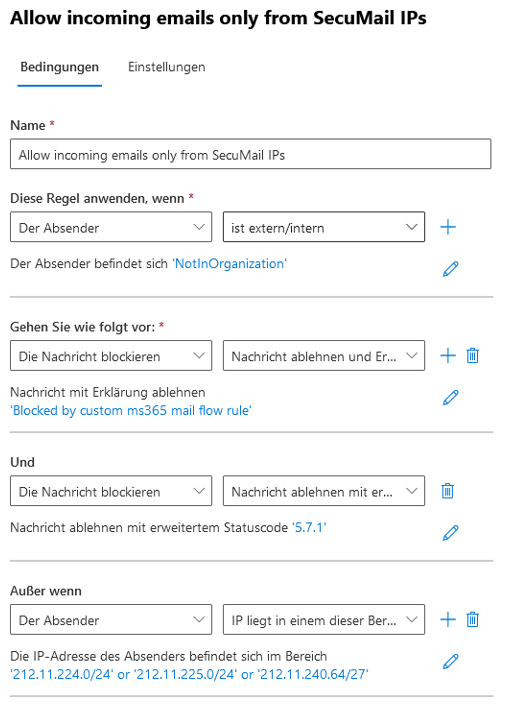
Name: (any name, e.g., “Allow incoming emails only from SecuMail IPs”)
Apply this rule when: The sender is external/internal. The sender is ‘NotInOrganization’.
Proceed as follows: Block the message. Reject the message and add an explanation. Reject the message with an explanation: (any, e.g., “Blocked by custom MS365 mail flow rule”)
And: Block the message. Reject message with extended status code: ‘5.7.1’
Except if: The sender’s IP address is in one of these ranges or exactly matches:
The sender’s IP address is located in the range: (Insert SecuMail network ranges: https://www.secumail.de/f-a-q/#1509011751766-d54bf2b1-bc78. Can be supplemented with your own IP addresses, e.g., from external service providers or systems, if necessary)
Mode: Enforce
Call us at 08171-246920 or send us an email to the SecuMail® team (support@secumail.de). You will receive all the help you need from us, firsthand.
Before:
mydomain.com. IN MX 10 mail.mycompany.com.
(or similar. There may also be several entries)
Afterwards:
mydomain.com. IN MX 10 mx-a.secumail.de.
 IN MX 10 mx-b.secumail.de.
Please note the dot after secumail.de!
Note: most hosting providers require this setting. Some hosting providers set it themselves and prevent manual setting.
Important:
- Equal priority for mx-a.secumail.de and mx-b.secumail.de.
- Period at the end of mx-a/b.secumail.de.
- No other MX entries, only mx-a/b.secumail.de.
- The original mail server must remain unchanged.
If, for technical reasons, two entries (mx-a… and mx-b…) with the same priority are not possible, the following single entry is also permitted as an alternative:
mydomain.com. IN MX 10 mx.secumail.de.
Please also note the point after secumail.de here!
Note: most hosting providers require this setting. Some hosting providers set it themselves and prevent manual setting.
The IP addresses of the Secumail® servers originate from the following networks:
212.11.224.0/24 (212.11.224.0/255.255.255.0)
212.11.225.0/24 (212.11.225.0/255.255.255.0)
212.11.240.64/27 (212.11.240.64/255.255.255.224)
If possible, you should configure your mail server to accept only emails from servers in all three listed SecuMail® IP networks and reject other SMTP requests from the Internet. Of course, IPs from your internal network, branch offices, field staff, and home offices should still be taken into account.
You have received login details (name/password) from SecuMail® Support for this purpose. Set up a smarthost on your mail server and authenticate it with the username and password you received.
For Microsoft Exchange servers, you need to set up a send connector. This documentation provides details on how to set up Exchange: Setting up a Microsoft send connector
SecuMail® Relay for outgoing emails: relay.secumail.de
This relay is mandatory for customers who use SecuMail® Encryption for S/MIME encryption and signing: enc.secumail.de
Please note the following information regarding the proper use of the relay:
- SecuMail® Relay scans all emails for viruses. If an email is infected, it is not forwarded (bounced).
- Avoid sending emails to undeliverable or non-existent addresses (especially emails from automated systems such as CRMs, etc.).
- Do not send mass mailings via SecuMail®. There are specialized service providers for newsletter services.
- This service is optimized for forwarding outgoing emails from your employees (and customers with SecuMail® Whitelabel). Please do not use automatic systems for sending bulk emails.
If you have any further questions, please do not hesitate to contact our support team: + 49 (0) 8171-246320/ support@secumail.de
The list of your email addresses (Valid Address Filter) can be transferred to SecuMail® in three different ways:
- Manual maintenance via SecuMail® Web. The method of choice for smaller customers with up to approx. 150 addresses.
- Automatic address list import. Larger companies can provide SecuMail® with a download (HTTP or SSH) of the address list. Export via direct LDAP query by SecuMail® is also possible.
- Automatic validation via SMTP requests (AutoVAF). This method works completely automatically, provided your mail server can deliver user information via SMTP. Please contact SecuMail® Support for details. This option is only available for SecuMail® Whitelabel.
We are happy to assist you in making the right choice.
Yes, absolutely! Any SPF checks on your own server MUST be disabled, otherwise emails could be lost. Only the “first mail server in the chain” should ever check SPF. This is an unchangeable feature (a disadvantage) of the SPF standard. This involves checking the SPF properties of incoming emails as an anti-spam measure. If your own domain has set an SPF record, this can of course remain in place. If you use the SecuMail® mailout, please remember to include this in your SPF settings.
Spammers use brute force to try out thousands of fictitious addresses from domains in order to find new addresses to which they can send their spam. In practice, such attacks can be recognized by the unusually high number of emails arriving that are sent to non-existent email addresses.
Such aliases may look like this:
- pbwbxzr@mycompany.com (“jumbled letters”)
- thomasbx@meinefirma.de (Names with unusual letters)
- katie@meinefirma.de (real first names) – …
These emails not only put a strain on mail servers, they also cause a lot of undeliverable messages. Often, these fake spam emails are sent in such large quantities that they can overload the email infrastructure. Mail servers may then be unable to process the flood of emails and block all desired emails as well. The Valid Address Filter is used to combat this. Emails whose recipient addresses are not included in the list are not accepted in the first place, and the connection is blocked for 30 seconds. This makes the entire domain less attractive to spammers. Attacks are thus mitigated and high-load situations are cushioned.
Ask the SecuMail® team about options for automatically importing the list if maintaining it in SecuMail® Web would be too much work.
It is possible to create your own whitelists. Instructions on how to do this can be found here.
You may have customers or business partners who need to send you emails with executable files attached on a regular basis. Such emails are regularly blocked by the extension filter because they contain potentially exploitable attack vectors. They must then be forwarded by you as the administrator via SecuMail® Web. For these cases, we offer the option of excluding individual email aliases from the extension filter. Registered email aliases will then no longer be blocked if you have attached files that contain potential attack vectors. The spam and virus filters remain active. We recommend this setting for individual email aliases where a large volume of emails with corresponding attachments is expected. We would like to point out that this whitelisting also comes with a moderate reduction in security. Please contact the SecuMail® team if you have any questions.
Yes, we also offer a package for audit-proof and GoBD-compliant email archiving. Like the SecuMail® email filter service, our SecuMail® archive is a cloud service that we provide in our data centers in Munich and Frankfurt. We would be happy to give you a personal presentation of SecuMail® archive: + 49 (0) 8171-246320 / angebot@secumail.de
Of course. The SecuMail® Encryption package offers encryption, decryption, and signing of your emails in the form of a customized cloud solution from our company. Both packages can be activated individually or together to protect your email communication. Find out more at angebot@secumail.de or call + 49 (0) 8171-246320!
SecuMail® checks the executability of attachments and filters all corresponding emails. In addition, the following file types are generally filtered:
SHB, SHS, DOTM, CPL, VBA, JSE, WP01, XXE, VBE, MSI, SCR, XMLT, wp03, UDF, SCF, DOCM, cab, MSC, ACE, VBS, CMSOFFICE1, RM, HLP, BAT, COM, wp02, ADP, RTF, ISO, CLASS, REG, WSC, cab2, WFS, LNK, INS, CHM, CLS, URL, JAR, INF, OCX, WSH, BAS, VB, MST, BIN, ADE, SCT, XLSM, STUBE, RT, EXE, HTA, XLAM, CDFV2ENC, CMD, WSF, PIF, CLA, PS1, JS
This list is regularly maintained by the SecuMail® team.
Additional settings can be configured for you personally.
To enable encrypted transmission of incoming and outgoing emails, your local mail server requires an appropriate SSL certificate. Once this has been correctly installed, communication between your mail server and the SecuMail® filter cluster will be encrypted.
Provided that the communication partners support it, SecuMail® always uses an encrypted connection to transmit emails. If necessary, an encrypted connection can also be enforced for individual communication partners. Please feel free to contact us for more information!
Possible sources of error when setting up STARTTLS:
- Incorrect SSL certificate used: Please check the DNS name and the alternative DNS names (Subject Alternative Names) of your certificate. The host name of your mail server should be included in the certificate.
- Microsoft Exchange Server, certificate incorrectly integrated: Ensure that the correct SSL certificate is stored for the affected incoming and outgoing SMTP connectors.
- Problems caused by firewalls or security gateways: Some firewall and security solutions (such as WatchGuard) intercept incoming or outgoing connections in their default configuration, thereby preventing encrypted SMTP connections. Therefore, check your firewall settings and compare, for example, the SMTP banner to identify any possible interference by the firewall in the SMTP connection.
SPF records help mail servers identify emails they send themselves as non-spam. They also make it easier to detect emails that use fake sender addresses belonging to you. If you use our mail server relay.secumail.de as a mail gateway for your outgoing emails, you can set the following text record in your domain’s DNS:
your.domain.com IN TXT "v=spf1 include:spf.secumail.de -all"
The entry specifies that only SecuMail® servers are allowed to send emails on behalf of your domain. This SPF record can, of course, be supplemented with additional parameters of your own. For example, if you use your own mail server for sending or if there is an external web server that also sends emails. If you already have an SPF record, please supplement it with:
include:spf.secumail.de
without setting a second TXT record. This SPF generator is helpful: http://www.spf-record.de/generator Note: The SPF standard has some serious side effects and is not without controversy. For example, forwarding to external addresses (other domains) is virtually prevented. We still recommend using SPF, provided that the possible effects have been carefully considered. If you have any questions, please contact support@secumail.de.
Important: To achieve complete protection against address spoofing, which also takes important mail headers into account, we recommend creating a DMARC record: Set up DMARC record.
DMARC (Domain-based Message Authentication, Reporting, and Conformance) is a mechanism for verifying emails and combating phishing and spoofing. It uses existing technologies such as SPF and DKIM.
It is a TXT record in the DNS of your mail domain that can be set optionally.
With this DNS entry, you can prevent external emails from disguising themselves with internal or external sender addresses. This method is often used in CEO fraud or spoofing emails. It is intended to create trust in the recipient by making the email appear to come from an internal colleague. To do this, the sender headers are simply forged. Since there are numerous and sometimes well-known services on the Internet that use header spoofing for their own reasons, spoofing cannot be filtered in general, but must be defined separately for each domain in the form of a DMARAC entry.
This is done using a DMARC record in the DNS of the sender domain (your domain). DMARC then causes the following to happen:
- the From header of an email from you must also comply with the SPF guidelines. DMARC therefore only works in conjunction with an SPF record. This defines which servers your email domain is allowed to send from. This allows you to block fraudulent senders.
- Alternatively, if the header-from and envelope-from cannot be aligned, the DMARC entry also accepts emails whose headers have been signed with a DKIM signature.
How is a DMARC record created?
As with SPF, a TXT record called “_dmarc.” is created for your domain: _dmarc.mydomain.com
We recommend the following entry, which works perfectly with SecuMail:
v=DMARC1; p=quarantine; pct=100; adkim=r; aspf=r
or create your own DMARC record:
https://powerdmarc.com/de/power-dmarc-toolbox
https://dmarcian.com
More information about DMARC:
Info: https://de.wikipedia.org/wiki/DMARC
Configuring SPF: https://www.secumail.co.ke/f-a-q/#1489262272575-af5fa3ea-c5da
Here we describe how you can use our SecuMail MTA-STS record for your own domain:
- Set a CNAME entry in the DNS for your domain as follows: _mta-sts IN CNAME _mta-sts.secumail.de.
- Set up a reverse proxy. This must provide the domain mta-sts.secumail.de under mta-sts.example.com. (Please replace example.com with your own domain.)
- Check configuration: Verify the correct resolution of the _mta-sts CNAME record. Compare the content of https://mta-sts.example.com/.well-known/mta-sts.txt with https://mta-sts.secumail.de/.well-known/mta-sts.txt. Finally, check the mta-sts setup of your own domain with the following web tool: https://aykevl.nl/apps/mta-sts/
Basic structure of an MTA-STS policy
Policy content:
- “version”: currently only the “STSv1” version is supported
- “mode“: here you can select one of three modes: ‘enforce’, ‘testing’, or ‘none’.
- Enforce: Emails are only sent if TLS encryption is possible.
- Testing: In this mode, the sending domain can send a report about errors in the policy to the receiving mail server (provided that both parties have implemented TLSRPT (TLS Reporting), specified in RFC8460). In any case, even if validation errors occur in the policy, emails can still be sent. This mode is particularly suitable for introducing and testing MTA-STS.
- None: This option deals with the policy, i.e., whether there are any active policies. If you want to remove MTA-STS again, select this mode.
- “max_age”: Here you set the time that may elapse between your policy being retrieved and the receiving MTA having to retrieve it again. The time is measured in seconds.
- “mx”: Enter your mail server/domain that processes and sends your emails, etc. This entry may occur multiple times.
Here is an example of what a policy might look like:
version: STSv1
mode: enforce
mx: mail.example.com
mx: *.example.com
mx: backupmx.example.net
max_age: 604800
With SecuMail Filter Plus, we also offer the additional CEO Fraud Filter. This must be specially configured and tailored to each customer.
What does the CEO fraud filter help with?
The filter detects emails that “gain trust” by using the names of known employees in management positions.
Example of a sender of this type: “Peter Müller” <jemand@woanders.cn>
Peter Müller is the correct name of the managing director of your own company.
How does the enhanced CEO fraud filter work?
The principle is simple. You create a list for SecuMail with the last names and first names of selected employees in exposed positions, e.g., managing directors from HR, accounting/finance, etc. Email addresses with these names (not addresses) are then blocked if they come from outside the company. Only the name of the address is checked, not the address itself. “Peter Müller”
How do you set up the filter?
The list of “exposed persons” should be as short as possible and only contain truly “important” colleagues.
For each entry, please specify the email address(es) that are permitted to use this name in the sender address. All other emails that have the name in the sender field but whose sender address is not listed (together with the name) will be filtered by the spam filter. Emails filtered in this way can be forwarded normally by the administrator or via the daily summary. We will then incorporate the list into the system.
The list should look like this:
First name; Last name; [optional: external email addresses permitted for this name, if available]
…
Note: We are currently unable to display all employees, as we expect to have to make manual adjustments.
Filter properties (for administrators)
Handling | Technology | ProcedureThe term “ransomware” refers to malware that can potentially cause significant damage to infected computers. In most cases, data on the hard drive is encrypted in order to extort a ransom. The term does not indicate how the malware is distributed. Currently, most ransomware malware is not sent by email itself. The emails merely contain very simple mechanisms designed to download the actual virus from the internet onto the target computer. The download is usually activated when the user opens a document file. This macro code is often transported in the following files via email:
- MS Office files such as .xls, .doc, .xlsm, or .docm. (e.g., Goldeneye, Teslacrypt, etc.)
- JavaScript files such as .js, .jse, or even in .html (Locky, etc.) – .vbe, .vbs, .exe, .bat …
SecuMail® implements a whole range of measures to prevent the transmission of such malware. Signature-based detection is completely inadequate for this purpose. SecuMail® therefore specializes in filtering attack vectors. Emails that contain a usable attack vector are generally filtered without the need to detect explicit malicious code.
Examples: SecuMail® filters file types that are rarely desired in emails and are often infected with malware. These include .js, .jse, .exe, .bat, .scr, .vbe, .lnk, etc. For file formats that are used frequently, blanket filtering would impose too great a restriction on users, so files such as .doc and .xls are examined more closely and only filtered if they contain a macro. This blanket filtering is based on the principle of a conventional firewall policy, which proactively distinguishes between desired and undesired content. In accordance with the policy, desired content is forwarded and undesired content is blocked.
The SecuMail® team is constantly working on the best possible security policy for all SecuMail® customers and automatically implements all necessary measures and changes in the respective SecuMail® settings. This means you don’t have to respond to current threats yourself, for example by adjusting your settings.
Initially, SecuMail® only checks your incoming emails. Outgoing emails are not affected at first, but can optionally be sent via a SecuMail® Relay.
You can choose to send outgoing emails:
- yourself (no problems with MX or SPF settings are to be expected)
- via SecuMail® Relay (please adjust your SPF record)
The SecuMail® relay service (relay.secumail.de) is available to you as an option. Every email is checked by a virus scanner. The service is distributed across two locations and designed to be redundant. Please ask us for the relay prices.
How do I set up SecuMail®-Relay?
SecuMail® only accepts emails whose destination addresses are known. All other emails are rejected via SMTP reject. A non-delivery message is then generated to inform the sender. If you require evaluations or log extracts, the SecuMail® team (support@secumail.de) will be happy to help.
No. SecuMail® does not alter the content of emails in any way. Emails are either filtered in their entirety (and forwarded later if necessary) or delivered as quickly as possible without any changes. In our opinion, removing viruses from emails is not advisable and carries high risks. The emails are only modified at a few technically necessary points that are invisible to the user (e.g., headers). Furthermore, we do not archive copies of emails that have not been filtered, nor do we store them temporarily for longer than until they are delivered.
The SecuMail® servers store all emails that could not be forwarded to the destination server and periodically retry to deliver the email. Only after approximately five days would such emails be deleted from the server and a non-delivery message generated. If you expect your mail server to be down for an extended period of time, please contact us to discuss alternative options.
When resending an email that has been incorrectly filtered, simply check the box “Do not filter this email in future.” Emails from this sender will then no longer be filtered as spam. The sender’s address will automatically be added to a whitelist. Active maintenance of white lists or black lists is generally not necessary with SecuMail®. However, if you as an administrator still need site-wide lists or would like to use existing lists, the SecuMail® team will take care of everything for you (support@secumail.de).
Under certain circumstances, yes. Spammers in particular tend to remember the old MX servers after a change in MX settings, e.g. after switching to SecuMail®. They expect that the ‘old way’ will use fewer anti-spam measures against them. The emails will then continue to be delivered directly to your mail server and will never have passed through the SecuMail® servers. To prevent this, we recommend that you secure your mail server so that it only accepts SMTP connections originating from the SecuMail® IP networks. (See FAQ: Which network ranges do I need to activate…) In some cases, this is not possible, e.g. if you use your email with a host that has a multi-domain email server. In these cases, the number of emails delivered ‘past SecuMail®’ should reduce to zero after a few weeks.
Not all email addresses are the same! There are two types of email addresses in an email:
Address in the header
- appears in the source code of the email in the email headers From:, To, Reply-To: etc.
- Displayed by the email programme as the sender or recipient address, etc.
- Will be examined by the spam filter whitelist.
- Is not the actual destination of the delivery (in the case of To:).
- Not set or only partially set for newsletters or mailings with BCC addresses.
Address in the envelope
- The envelope addresses ensure the route for the actual delivery of the email.
- They cannot be found in the source code of the email, as the mail servers do not transfer them after delivery, so they are not displayed in email clients.
- Since only the envelope data is relevant for the delivery of emails, this data is also displayed as the sender and recipient addresses in the SecuMail® daily summary and SecuMail® Web, and may therefore differ from the addresses displayed in the email programs.
Of course, SecuMail® can also deactivate its own quarantine function and deliver ALL emails after checking them. In this case, a few mail headers are added to the emails, which can be used to easily sort them locally.
The following headers are set:
- X-SecuMail-Filter-Level: 0,2,4,…
- X-SecuMail-Quarantine: yes/no
- X-SecuMail-Spam-Score: (SA-Score)
- X-SecuMail-Spam-Check: (none/ham/unsure-ham/unsure-spam/spam/definitely-spam)
These headers are always set, even if, as is usually the case, SecuMail quarantine is active.
Please note that for load reasons, not all checks are always performed. The scan starts with the highest priority level (virus). If a virus scanner finds something in an email, no further or lower priority checks (e.g. spam filter) are performed, as they cannot change the overall result.
SecuMail® delays emails by less than 6 seconds on average. If significant delays do occur, there may be several reasons for this:
- Emails with larger attachments require more time for transmission and filtering.
- Unusual load peaks (e.g. due to attacks) on the SecuMail® cluster may, in rare cases, delay delivery by a few minutes.
- Spam filter technology ‘greylisting’. See also ‘What is greylisting?’ (Greylisting is only used by SecuMail® in very few special cases).
- The chain of servers and network components used to transfer emails from the sender to the recipient varies from one (company) network to another. SecuMail® is only one link in this chain, so delays can also be caused by external components.
Please contact the SecuMail® team if you notice any irregularities of any kind (support@secumail.de).
Nein, mit sehr wenigen Ausnahmen.
Greylisting is a form of spam control that takes place during the SMTP connection of the mail servers. Emails are initially blocked during the first delivery attempt and only accepted after further delivery attempts. This procedure is intended to prevent the acceptance of emails sent by ‘sloppily programmed’ email programmes on the internet. These are often used by spammers and malware senders in so-called ‘botnets’ to send thousands of emails. In the process, the mail transfer of individual emails is quickly abandoned in the event of difficulties or delays and no further attempts are made in order to send as many emails as possible in a short period of time. ‘Real’ mail servers, on the other hand, are much more robust and make several delivery attempts until the email is delivered. Greylisting exploits this difference between mail servers by delaying emails from unknown sender/recipient combinations, meaning that many spam emails are not even accepted in the first place.
The disadvantage of greylisting is a delay of at least 15-40 minutes for emails from ‘first contacts’ – depending on the configuration of the sender’s mail server. We believe that this delay is an unreasonable disadvantage for email users. We have therefore decided not to use greylisting in normal cases. If you are a SecuMail® customer and are experiencing problems with delays caused by greylisting, please contact us.
Note: SecuMail® dynamically activates greylisting in rare cases! The technology is only applied to emails originating from servers that do not meet the usual criteria for a mail server (e.g. correct DNS entry for the IP address, etc.). Emails from ‘proper’ mail servers are exempt from greylisting and are not delayed!
A whitelist entry only prevents filtering based on SPAM criteria. Security-related reasons for filtering, such as viruses or executable files, are not affected. However, the SecuMail® team can also activate sender addresses for this type of filtering upon request.
SecuMail® has a centralised, highly adaptive analysis system. It learns with every email it processes and makes the information gained available in the SecuMail® cluster in real time for further use and filtering. This means that SecuMail® automatically adapts to your individual spam traffic over time.
With other service providers, you are used to managing a multitude of settings. SecuMail® only offers settings that you actually need, because security is the responsibility of the SecuMail® team. Sit back and relax while we adjust and optimise your filter settings on a daily basis. Of course, you can have your settings customised at any time.
Unlike other providers (such as MS 365), SecuMail® is comprehensive. We do not offer a web portal for self-service, but rather a full service.
No. The SecuMail® email filter service can only filter all addresses of an entire domain (e.g. my-company.co.ke). If you only use a single email address, SecuMail® cannot filter it directly (e.g. mustermann@gmail.com). If you have your own email domain, you can have it protected by SecuMail® and forward your existing email address to it.
Virus scanners generally offer insufficient protection against email malware, as they only detect viruses once they are known to the virus scanner manufacturer and a signature update has already been carried out. Preventive filtering of all file attachments that contain a potential attack vector is therefore necessary. Emails that are incorrectly filtered due to this issue can be viewed by the administrator in SecuMail® Web, who can then use their trained understanding to decide whether to forward the email. Office documents containing macros are most commonly affected by this.
Please contact the SecuMail® team if individual email connections are to be excluded from this filtering. This may be necessary in individual cases, e.g. if a customer or business partner sends regular or automatic emails with problematic attachments and is unable to switch to a secure format.
Most spam emails are sent with fake sender addresses and would therefore have a different address in the next spam email.
Unfortunately, the existence of spam or email malware was not anticipated in the email standard. Therefore, there is no technical way to clearly distinguish a legitimate email from spam. SecuMail® goes to considerable lengths to keep detection as error-free as possible. This has been achieved at a very high level for many years. Learning and evaluating relevant clues in spam emails keeps our filter automatically up to date. However, from time to time, it is impossible to prevent a few examples, which are the tip of the iceberg of a new wave of spam, from passing through the filter unfiltered. The SecuMail® team will be happy to help you readjust your filter.
No. The SecuMail® servers store all emails that could not be forwarded to the destination server and periodically retry to deliver the email. Such emails are only deleted from the server after approximately five days. If you expect your mail server to be down for a longer period of time, please contact us to discuss alternative options.
The SecuMail® service will create a new password for you. To do so, send an email with the corresponding request to support@secumail.de.
Your web form may be sending emails with unauthorized senders. If the form uses the sender addresses of interested parties/customers who have filled out the form, the web server would send emails from domains for which it may not be authorized according to the domain owner’s SPF record. SecuMail® checks SPF, DKIM, and DMARC records.
In principle, this approach by the website is therefore no longer up to date, as it is not SPF-compliant.
Solution:
The website sends the emails from an authorized, proprietary sender address @mydomain.com and can still set the external, original address of the person who submitted the form as the reply-to address. This means that replies to the emails would still be sent to the original sender of the form.
In the short term, adding the sending IP (of the web server) to the SPF whitelist at SecuMail® could help. However, this is hardly a long-term solution, as when the web server’s IP changes, the entry at SecuMail® is usually not taken into account, meaning that the problem starts all over again each time.
Our SecuMail® team will be happy to assist you with this issue as well.
08171-246920
It is possible to create your own blacklists. Instructions on how to do this can be found here.
The fact that your own email address is listed as the sender in a spam email sent to you is no cause for concern. Spammers can easily forge the sender address using technical means. Unfortunately, however, it is impossible to prevent others from misusing your email address as the sender. SecuMail® often uses such indications of identity theft as a clue to spam or phishing.
Yes, if possible. Carefully selected links in emails are automatically retrieved and examined via HTTP request. If these links automatically download files from the Internet, these files are treated or blocked in the same way as file attachments in the email itself. In SecuMail® Web or the corresponding daily summary, the reason for filtering is displayed as usual, as if the downloaded file had been an attachment. This measure is very helpful for some types of phishing emails with direct download links.
Note on possible side effects: Please note that despite very careful and selective checking and selection of links, it cannot be 100% ruled out that these will be checked by SecuMail®. This is equivalent to these links being clicked on without the user actually noticing. In individual cases, this could also result in opt-in/opt-out links or password confirmation links being accessed. For this reason, each customer must weigh up for themselves whether they prefer the increased security or do not want to use this new feature. If you would like to deactivate link verification, please send a short email to support@secumail.de or call the SecuMail® team at 08171-246920.
How can I send spam emails/junk emails with file attachments that have slipped through to SecuMail®?
Send the email as an EML file attachment to support@secumail.de.
Important: Please note that we may need to obtain some information from the “false negative” spam email in order to manually adjust the filter. It is best to save the spam email as an EML file (this service is primarily available for spam series or fraud attempts) so that the email reaches us as unchanged as possible. Providing the sender, subject line, or email ID is usually not sufficient.
If you frequently encounter false negatives (e.g., as an administrator), we will be happy to provide you with an IMAP box that you can set up in your email program in addition to your own. You can simply drag and drop all false positive emails into this box. Once the emails have entered our system unchanged, they are automatically processed in the learning processes on the servers. Please do not hesitate to contact us! Thank you for your help.
If you would like to view the list of email addresses on the general spam whitelist, you can find it in the portal under the menu item “Whitelists.” There you can view and manage two types of whitelists. Whitelists are available for the spam category and the attachments category. In principle, however, it is not necessary to manually maintain blacklists and whitelists on a large scale with SecuMail®, as SecuMail® calculates automatic lists for all users. Note: The general spam whitelist is always valid for all users of a client at the same time.
If you would like to view the list of email addresses on the general spam blacklist, you can find it in the portal under the menu item “Blacklist.” There you can create blacklist entries and delete previously created entries. In principle, however, it is not necessary to manually maintain blacklists and whitelists on a large scale with SecuMail®, as SecuMail® calculates automatic lists for all users. Note: The general spam blacklist is always valid for all users of a client at the same time.
List of permanent SMTP error codes for the SecuMail filter (MXe):
- “User unknown – denied by SecuMail valid-address-filter”
Type: 500 (permanent)
Description:
The recipient’s email address does not exist and is therefore not accepted.
Please check the address and correct any typos.
The employee may no longer be with this company.
SecuMail customers: if the email address is correct, please check whether it has been entered or imported into the valid address filter in the SecuMail portal. - “Unknown internal address denied – denied by SecuMail valid-address-filter”
Type: 500 (permanent)
Description:
The email was not accepted because the domain of the sender address is one of the customer’s target domains protected by SecuMail. The address is therefore classified as an internal address and must be approved or registered with SecuMail.
SecuMail customers: enter the sender address in the Valid-Address-Filter. - “Mail is too large – denied by SecuMail valid-address-filter”
Type: 500 (permanent)
Description:
Emails that are extremely large cannot be accepted. The limit usually applies to emails with a total size exceeding a low three-digit number of MB. - “Relaying denied, unknown domain – denied by SecuMail valid address filter”
Type: 500 (permanent)
Description:
The domain of the destination address is unknown or disabled. Emails to this domain cannot be accepted or forwarded. There may be an error in the MX configuration of the domain. - “Unknown internal sender address – denied by SecuMail autovaf via customers MTA”
Type: 500 (permanent)
Description:
see ‘B’
(via autovaf) - “User unknown – denied by SecuMail autovaf via customers MTA”
Type: 500 (permanent)
Description:
see ‘A’
(via autovaf) - “Destination resource temporarily not available – softdenied by WorNet SecuMail autovaf. Connection Error/Timeout”
Type: 400 (temporary)
Description:
The destination server (customer) is currently unavailable. The email has been temporarily rejected and your system will attempt to deliver it again (per RFC). - “The recipient enforces secure TLS connections. Please use a more uptodate protocol version – denied by SecuMail ForceTLS”
Type: 400 (temporary)
Description:
The recipient has set minimum standards for TLS encryption that could not be met. Therefore, the email could not be accepted. The sender’s mail server should be equipped with the latest security standards so that the email connection can be made at a secure level. Use the latest TLS/SSL protocols and secure ciphers. - “The recipient domain enforces TLS connections, plaintext is not allowed – denied by SecuMail ForceTLS “
Type: 400 (temporary)
Description:
The recipient has blocked the unencrypted transmission of emails and no TLS connection could be established. The sender’s mail server appears to be outdated and should be equipped with the latest TLS protocols and ciphers. - “[…] not accepted in from address – denied by SecuMail BadMailFrom”
Type: 500 (permanent)
Description:
The sender address in the Envelope-From contains unauthorized characters. The characters in question are listed in the error message. - “[…] not accepted in to address – denied by SecuMail BadRcptTo”
Type: 500 (permanent)
Description:
The recipient address in the Envelope-To contains unauthorized characters. The characters in question are listed in the error message.
If you have any questions about our SMTP codes or would like to report a malfunction, please contact support@secumail.de.
Billing (For Purchasing)
Prices | Automatic billing | QuotationIn line with modern cloud services, SecuMail® Filter is billed dynamically based on current usage. SecuMail® automatically counts the number of email addresses (not users). Invoices are dynamically adjusted to reflect current usage.
- SecuMail® Filter:
SecuMail® calculates the number of stored email addresses. Email addresses that differ only in the domain or in separators such as ‘.’, ‘-’ or ‘_’ are counted as only one address. Example:
• John.Doe@firma.de • John-Doe@firma.de • John_Doe@firma.com • John.Doe@firma-online.de
These four addresses would be counted as one additional address. - SecuMail® Filter White-Label:
The white label package is optimized for the simplest and most efficient use by system houses and agencies. Therefore, only email addresses that are considered “used” are charged. Addresses are considered used if at least three emails were delivered to them unfiltered in the last month. As a rule, this results in approximately 25% fewer email addresses being charged than are stored.
This makes it easy for system houses to flexibly add or remove addresses and domains when they have acquired new customers or need to make other adjustments, without having to consult SecuMail® about license or cost adjustments. In general, SecuMail® does not require (over)licensing or reporting of user numbers.
In line with modern cloud services, SecuMail® is billed dynamically based on current usage. SecuMail® automatically counts the number of email addresses (not users). Invoices are dynamically adjusted to reflect current usage.
SecuMail® White-Label: The White Label package is optimized for the simplest and most efficient use by system houses and agencies. Therefore, only email addresses that are considered “used” are charged. Addresses are considered used if at least three emails were delivered to them unfiltered in the last month. As a rule, this results in approximately 25% fewer email addresses being charged than are stored.
This makes it easy for system houses to flexibly add or remove addresses and domains when they have acquired new customers or need to make other adjustments without having to consult SecuMail® about license or cost adjustments. In general, SecuMail® does not require (over)licensing or regular reporting of user payments.
The SMIME gateway is also billed dynamically based on current usage. SecuMail® counts the number of email addresses (not users) participating in encryption. All other addresses are forwarded without encryption/signing and are not billed. At least 7 addresses must participate in SMIME encryption. Invoices are dynamically adjusted to current usage.
Setup for the SecuMail® email filter service (spam and malware filter) is completely free of charge.
For SecuMail® Encryption (SMIME gateway), we charge a one-time setup fee of €250, as this involves creating an interface to the certification authority.
Yes. You will be billed based on the number of email addresses. The number of mail domains is irrelevant.
The main advantages of SecuMail® over MS 365 filters:
- Data protection / GDPR:
- Unlike MS 365, SecuMail® is fully GDPR compliant.
- SecuMail® is operated exclusively in Germany and solely by us. This is not only good news for data protection officers.
- Costs:
- Useful filter packages that offer a similar range of filters to SecuMail® are more expensive with MS 365.
- They are twice as expensive because an administrator or service provider acting as a security expert must constantly adjust the security settings. With SecuMail®, this service is included as a standard feature in all packages. SecuMail® is a full-service solution.
- Flexibility
- You have to go with what the MS developers/sellers have come up with. SecuMail®, on the other hand, adapts to your requirements.
- SecuMail® offers collaboration on equal terms.
- Vendor lock-in
- In general, it is not advisable to place security matters in the hands of MS. When it comes to email and IT security, this competitor does not exactly have a positive reputation, especially since MS Office documents are one of the biggest risk factors.
- With SecuMail, you are supported by a local company that treats you as an equal.
… to mention the most important advantages.
If you have any questions about SecuMail® and MS 365, our support team will be happy to assist you.
Anyone can afford SecuMail®! Request a quote now: angebot@secumail.de / 08171-246920
SecuMail® is available in two versions:
- Filter
- Whitelabel filter for system houses and agencies
The Filter PLUS option is available for both variants.
We would be happy to provide you with a personalised SecuMail® quote. Please contact us on 08171-246920 or at support@secumail.de.
Of course, you can test the SecuMail® email filter service free of charge.
As a prospective customer, you have the opportunity to test SecuMail® without restriction and with full functionality for one month. The trial is free of charge and completely non-binding.
We will be happy to set up your trial version. You can activate the SecuMail trial by changing the MX entries. You can cancel the trial at any time by removing the MX records from SecuMail® again.
Have the SecuMail® trial set up for you: 08171-246920 / support@secumail.de
When setting up SecuMail® Encryption, the paid interface to the certification authority must be set up from the outset, which is why we cannot offer SecuMail® Encryption for testing free of charge.
SecuMail® offers exclusively email filter services, is highly specialised and invests considerable effort in anti-spam and email security. As a result, both of these services are significantly more powerful and sophisticated at SecuMail® than the services ‘included’ with standard providers or other anti-spam/malware products.
A brief selection of the most important features, which are usually rarely or never available from ‘normal’ providers:
- The excellent filter rate.
- The experts in support.
- The quarantine and preview function in SecuMail® Web.
- The simple option for users to forward emails to themselves.
- More than 20 years of experience in email security.
- Various techniques, such as DMARC, proprietary DNSBLs, link tracking, domain tracking, attack vector filtering, etc.
- The email firewall that filters malware and spam before it reaches your infrastructure.
The best way to get to know SecuMail® is during the free trial period.
Give us a call. We look forward to hearing from you and will be happy to answer any questions you may have about SecuMail®: 08171-246920
SecuMail® Filter Plus is an upgrade package for the standard SecuMail® filter package. In addition to new enterprise features, enhanced security functions and improved support, it also offers customisable options.
You can find an overview of the features included on our ‘Feature Matrix’ page. There you will find a direct comparison of the two packages, SecuMail® Filter and SecuMail® Filter Plus. Please also read our blog article ‘The Upgrade Package – SecuMail® Filter Plus’.
SecuMail® is GDPR compliant. Our cloud service exceeds the applicable transparency requirements. Please contact us if you have any questions about data protection, TOM or commissioned data processing, or if you would like to know how your data protection requirements are harmonised with SecuMail®. We will be happy to provide you with the relevant documents.